# Knock Knock – What's new
This page shows the changes to Knock Knock. The newest changes are first. Each section has the month of the changes.
October 2026: Delivery status and publication tabs
Before October 2026, Knock Knock showed only that it sent a notification. It did not show the result for each notification. Now Knock Knock shows the result. It shows how many devices received the notification and how many devices wait for their confirmation. It also shows why some devices did not receive it. The Dashboard shows this for each notification. The Analytics page shows it for a period. You can now also select a different publication more quickly.
Delivery status for each notification
Each sent notification in the Dashboard list shows its status after the time. Immediately after the send, the status is to 2,832 devices, confirmation expected 13:29. When Knock Knock has the confirmations, the status is 99% delivered. While some devices still wait, the status is, for example, 96% delivered, 600 waiting for confirmation.
A notification immediately after the send
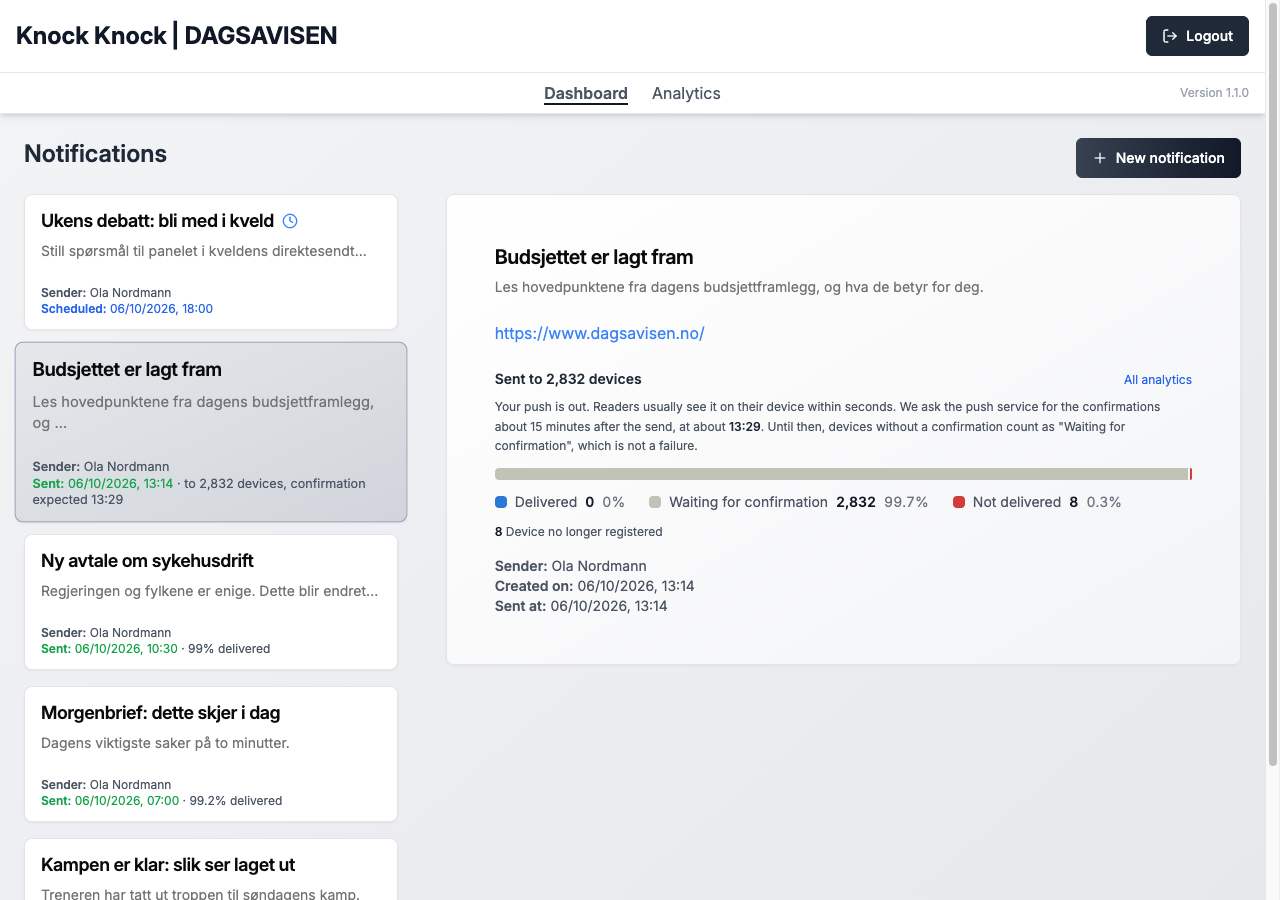
The details panel shows a bar with three groups: Delivered, Waiting for confirmation and Not delivered. When some devices did not receive the notification, a list below the bar gives the reasons.
The same notification after the confirmations
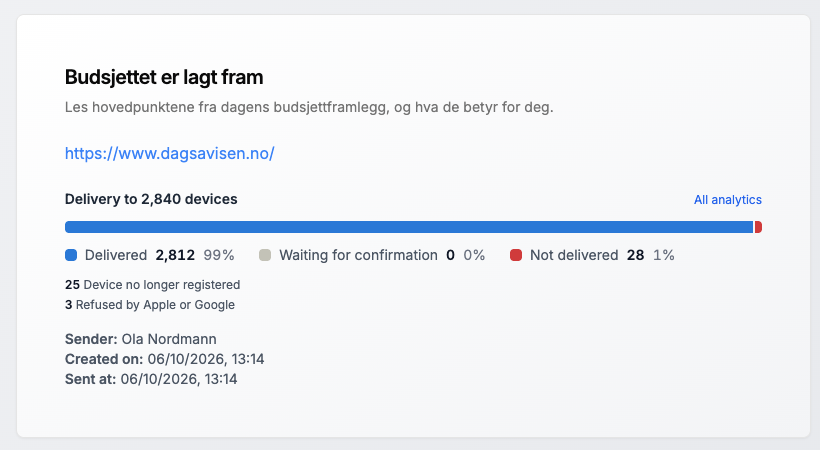
Two more statuses have their own text:
- no devices with push on: The publication has no devices with push notifications on.
- Not sent: the push service refused it, no reader got it (in red): The push service refused the notification for all devices, or Knock Knock could not connect to the push service.
The 15-minute confirmation
The push service gives the result in two steps. First, it accepts the notification when you send it. This takes some seconds, and readers usually see the notification immediately. Then Apple and Google confirm the delivery for each device. Knock Knock asks for these confirmations approximately 15 minutes after the send. After that, it asks one time each hour for the confirmations that it did not receive yet. Until then, the devices show as Waiting for confirmation. This is not an error. The Dashboard shows when Knock Knock expects the confirmation, and the details panel tells why it waits.
The Dashboard updates automatically
While a notification waits for its confirmation, the Dashboard updates its numbers automatically. The first update occurs at approximately the expected time. After that, the Dashboard updates one time each minute until it has the numbers. You do not have to reload the page. When you click a notification, the Dashboard also shows its latest numbers.
New Analytics page
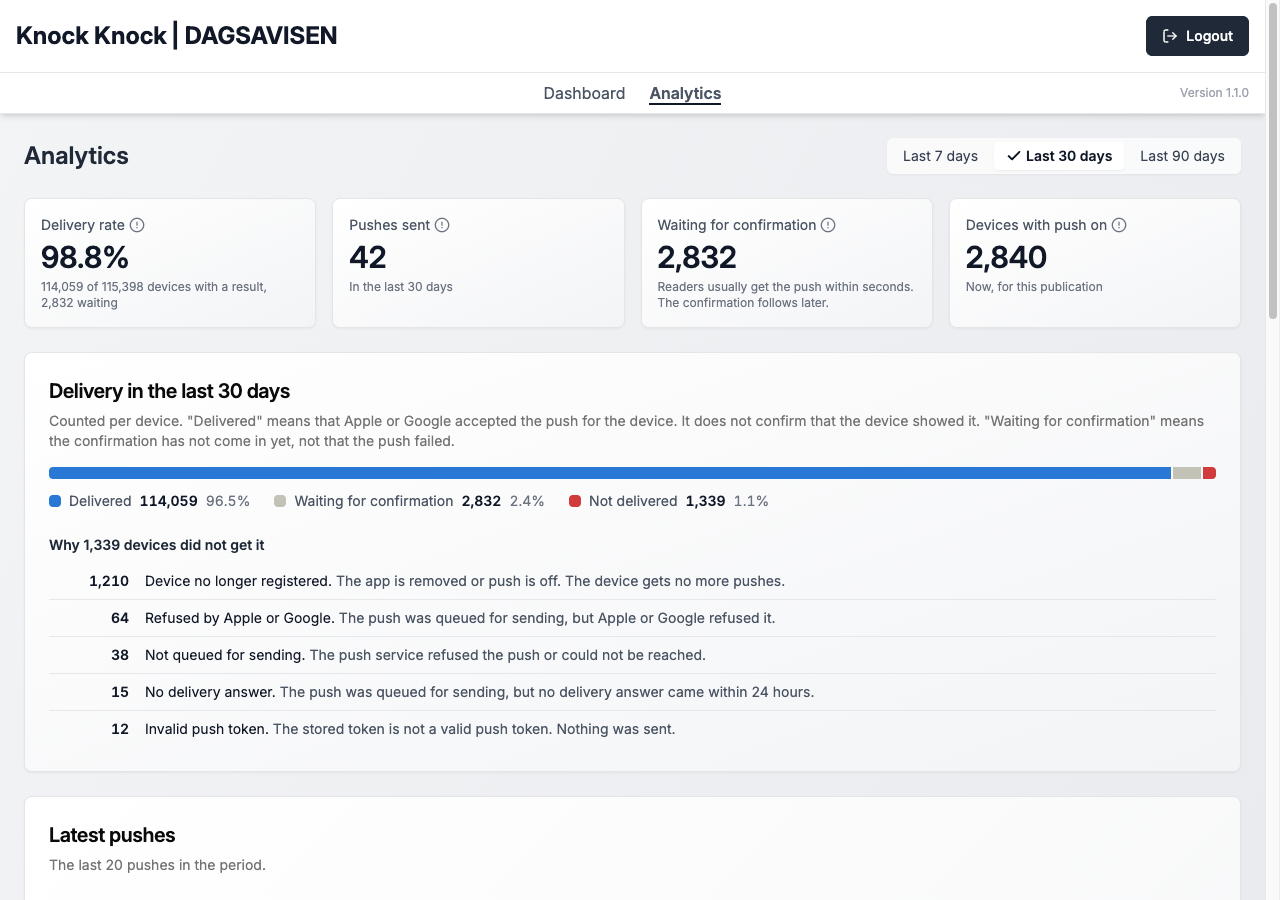
The Analytics page now shows the delivery of your notifications.
The Analytics page
-
Period: Select the last 7, 30 or 90 days at the top right.
-
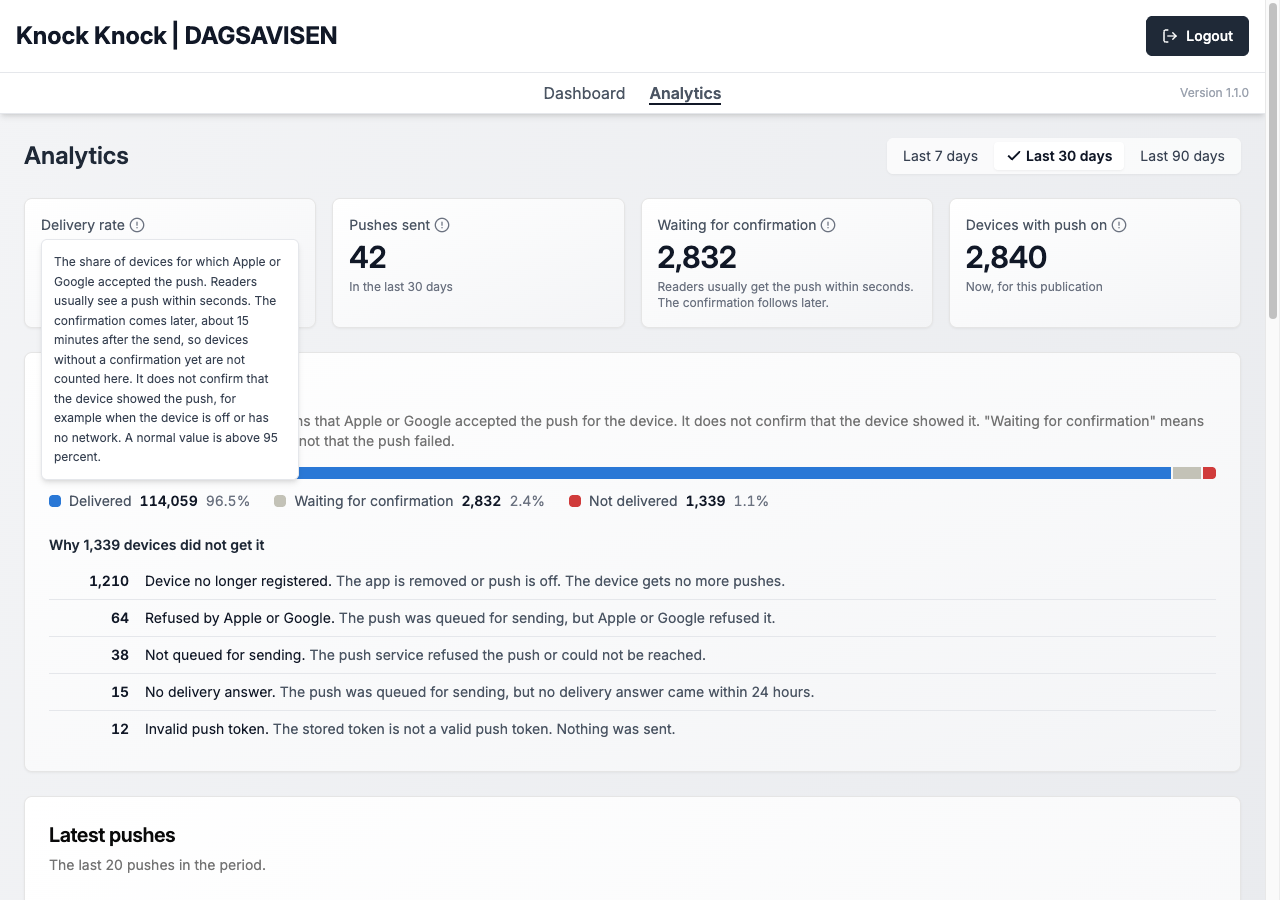
Four tiles, each with a ! icon that tells what the number means: Delivery rate, Pushes sent, Waiting for confirmation and Devices with push on. The delivery rate does not include the devices that wait. Thus a new notification does not make the rate lower. The tile shows a dash (–) only when no device in the period has a confirmation yet.
The text behind a ! icon
-
Delivery in the period: One bar for all notifications in the period. Below the bar, the list Why N devices did not get it gives the number of devices for each reason.
-
Latest pushes: The latest notifications with their devices, the percentage delivered, and the devices that wait or did not receive the notification.
-
How a push travels: The four steps Devices, Sent, Queued and Delivered. The numbers with a minus sign show how many devices did not go to the next step, and why.
How a push travels
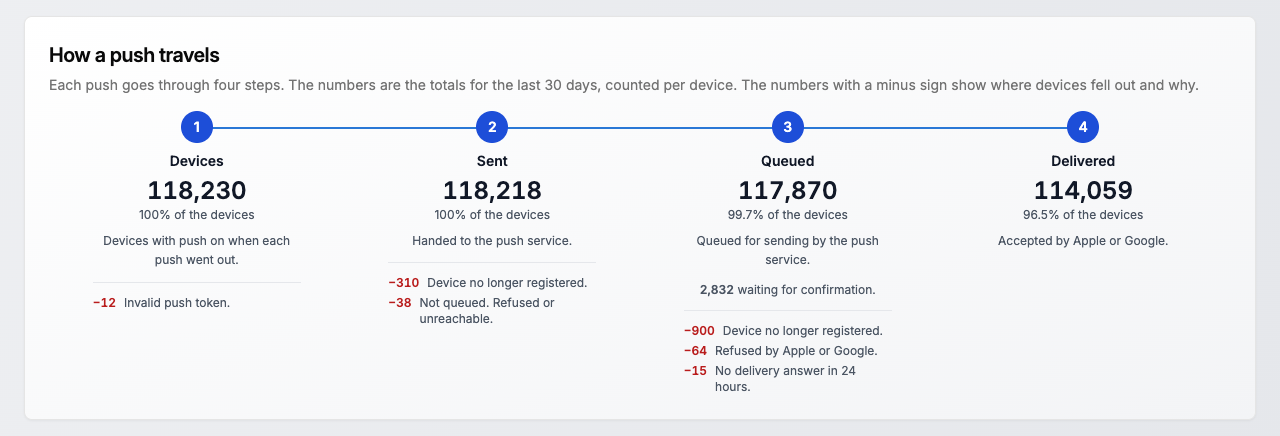
The numbers on the page start on the day of the update. The total number of accepted notifications since the start stays in a line at the bottom of the page.
Messages after a send
When you click Send Notification, a message in the corner of the page gives the result. The message is one of these:
- Push notification was sent successfully
- Partly sent, with the numbers of devices
- Sent to no devices
- An error message
Delete notifications
You can only delete a scheduled notification that Knock Knock did not send yet. A notification that Knock Knock sent, or that the push service refused, stays in the list with its delivery status.
Select a publication
-
Tabs for sibling publications: Some publications are siblings, for example TU and Digi. If you work for two sibling publications, they show as tabs at the top of the page.
Tabs for TU and Digi

-
An address for each Dashboard: The address contains the name of the publication, for example
/dashboard/dagsavisen. You can save it as a bookmark. -
Direct start: If you are already logged in, Knock Knock opens your Dashboard immediately.
Words
The texts use the push service for the service between Knock Knock and the phones. Delivered means that Apple or Google accepted the notification for the device. It does not confirm that the device showed the notification.
Before October 2026
The Knock Knock that this guide described until October 2026:
- Login with Microsoft Single Sign-On.
- A Dashboard with the sent and scheduled notifications, and the details of each notification.
- Send a notification immediately or at a date and time that you select, in the time zone of the publication.
- Delete a scheduled notification before Knock Knock sends it.
- An Analytics page with two numbers: the users with push notifications on, and the total number of successful deliveries since the start.