Play is video hosting designed for news publishers. Upload, host, and embed high-quality videos directly into your articles with our seamless platform built specifically for media companies.
New features
- Video Lists - are available in production. You can create curated collections of videos and embed a list player in your articles. See (#8-video-lists).
1. Log in with Microsoft Single Sign-On
To access Play, you use your existing work account email address that your organization has added to the Microsoft resource (e.g. name@example.com). To request access, go to https://my.intility.com/apps or support@intility.no.
-
Open the Play URL provided by your organization.
-
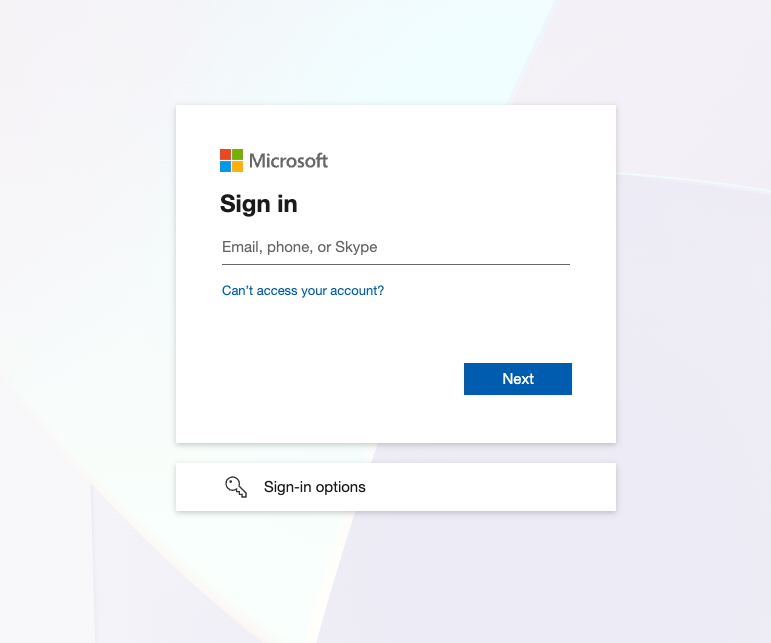
Click Sign In to be redirected to the standard Microsoft sign-in page.
Example: Microsoft sign-in screen
-
Enter your work email, then click Next.
-
Complete any additional authentication steps required by your organization (e.g. password, MFA).
-
After a successful login, you are taken to the Dashboard (or to Select Tenant if you are an admin with multiple tenants).
2. Select Tenant (Admins only)
If you are an admin and have access to more than one publication (tenant), you will be asked to Select Tenant after logging in.
- Choose the publication you want to work with from the dropdown.
- Click Continue.
- You will be taken to the Videos.
Note - the tenants tab has Name, Editor Group ID, Tenant Groupi ID, Videos, Published, Draft and Actions columns showing per-tenant content counts.
3. The Dashboard
The Videos is the default view after logging in. From the top navigation you can go to:
- Videos — view and manage your videos
- Video Lists — create and manage video lists (admins also see Tenants when available)
Search and filter: Search by title, description and tags, filter on tags, and filter on published or draft status.
3.1 Video Lists
On the Dashboard you see a table of your videos. Each row shows:
- ID — internal video ID
- Preview — thumbnail (auto-generated or your custom poster image)
- Title
- Description
- Added
- Actions — Play (preview), Edit (open video page)
Use Upload video in the top-right to add a new video. If you have many videos, use the pagination at the bottom to move between pages.
3.2 Quick actions
- Play — open a preview player in a modal.
- Edit — open the video detail page to edit metadata, poster image, embed code, publish/unpublish and delete videos.
Note - the whole row is clickable to open the edit page - the pencil is only a hover cue.
4. Uploading a Video
- On the Videos, click Upload video (top-right corner).
- In the Upload new video window:
- Upload — drag and drop your video file or use the uploader. Wait until the upload finishes.
- Wait until the upload is complete. Do not close the window and not upload the file again. Then fill in:
- Title* — at least 2 characters; short, clear title (required).
- Description* — at least 10 characters; describe the video for your team and for SEO (Search Engine Optimization).
- Tags — type a tag and press Enter to add. Tags help organize, search and find videos. The field now suggests the tenant's existing tags as you type, while free text still adds a new tag.
- Click Save.
Play processes the video in the background. When it is ready, it shows in the Videos table. Open the video to add author name and a poster image, publish the video, and get the embed code.
Guidelines:
- Write a title that tells what the video shows.
- Write a description that summarizes the video. This helps search and gives context.
- Use the same tags each time tags (e.g. topic, section, campaign). This makes it easier to find and filter videos.
5. Editing a Video and Poster Image
-
On the Videos, click Click the video row. The video page opens.
-
Change the fields that are necessary:
- Title and Description: Edit the text in the form.
- Author: Type the name of the person who made or uploaded the video.
- Tags: Type a tag and press Enter to add it. Click × on a tag to remove it.
- Poster image: Click Add poster image or Change to upload an image (JPG, PNG, or WebP, maximum 5MB). You can see the image before you save. To remove image, click Delete and confirm. If you do not set one, a thumbnail is generated automatically.
-
To see technical information about the video, open the technical details section by clicking Technical details. This section is closed when the page opens.
-
Look at the unsaved changes indicator at the bottom of the page. It shows when you change the title, description, author, tags or poster image.
-
Click Save at the bottom of the page.
Note: Before you leave the page, make sure that the unsaved changes indicator does not show. If you leave the page before you click Save, your changes are lost.
6. Publishing and Unpublishing
- Publish — makes the video available for embedding on your sites. Click Publish in the sticky footer on the video page. Once published, you can copy the embed code from the Embed this video section.
- Unpublish — removes the video from being available on embedded players. Click Unpublish in the footer. The video will no longer play where it is embedded.
You can still edit title, description, tags, and poster image when the video is published or unpublished.
7. Embedding a Video
- Open the video and ensure it is Published.
- In the right-hand Embed this video panel, find the HTML Element section.
- Click Copy embed code to copy the full snippet to your clipboard.
- Paste the code into your article or CMS where you want the video to appear.
The embed code includes:
- The embed code is one line:
<unite-player>only, with no script tag.
Use these options to control how the video plays in the article. Set the options before you copy the embed code:

- Play on load: The video starts automatically when the page opens. The sound is always off when this option is on. This is a browser standard.
- Play muted: The video plays with no sound. The reader can turn on the sound.
- Repeat: The video starts again from the beginning when it ends.
- Show player controls: The player shows the controls (for example play, pause and sound). Turn off this option to hide the controls.
Example (conceptually):
<unite-player video-id="YOUR-VIDEO-UUID"></unite-player>
Use the exact code from Play so the correct environment (e.g. staging vs production) and UUID are used.
Note: If you change an option, copy the embed code again and replace the old code in the article.
8. Video Lists
Video Lists let you group videos into curated collections (e.g. “Breaking news”, “Week in review”) and embed the whole list as a single player.
8.1 Creating a list
- Go to Video lists in the top navigation.
- Click Create List.
- Enter a Title (required) and optionally a Description.
- Click Create List.
The new list appears as a card with video count, author and created date. Click the card to open the list and add videos.
8.2 Managing a list
On the list page you can:
- Add Videos — click Add Videos, search or browse available videos, and click Add for each video you want. Only videos that are not already in the list are shown.
- Edit List — click Edit List to change the list title and description.
- Delete List — click Delete List to delete the list.
- Actions — Play (preview), Edit and Remove videos.
8.3 Quick actions
- Play — preview a video from the list in a modal.
- Edit — open the video’s own page to edit metadata or poster.
- Remove a video — use the remove (trash) icon in the row for that video. This only removes it from the list; it does not delete the video from Play.
The right-hand panel shows List metadata (UUID, created, updated, author, video count) and Embed this list.
8.4 Embedding a list
- Open the list.
- In Embed this list, use Copy embed code to copy the embed snippet.
- Paste it into your page or CMS where you want the list player to appear.
The list embed uses the same Unite Player script and a <unite-player> tag with list-id set to the list’s UUID.
8.5 Add script to CMS (Labrador) to hide menu on video list
When a video list uses the Unite player layout, the site header and page content can be hidden so the player view is cleaner.
- In Labrador, go to Admin.
- Open Custom tags.
- Select the correct site.
- Add a new custom tag (type Style/CSS).
- Choose where to place the tag, e.g. Head – top.
- Select page type, e.g. All page-types.
- Enable Hide in editor (checked on).
- Paste the CSS below and save.
body.unite-player-hide-site-header header.pageHeader,
body.unite-player-hide-site-header div.page-content {
  display: none !important;
}
9. Using the player in your CMS (video scrollbox)
Play lets you embed a single video or a video list. To show several videos in a carousel/scrollbox on the article page in labrador, you first set up the scrollbox and a dedicated style for video teasers in your CMS. Then you update the content using embed code from Unite Play.
- Create the video scrollbox and teaser style
- Go to menu on the right, choose Content >> add element >> check "Display all" to show available elements (if it's not visible).
- Add a scroll box to the page where you want the video carousel.
- Create an article teaser style that shows only the image (no title, lead text, etc.), and name in scrollbox title e.g. “videoklipp”. This style is used as the container for each video in the scrollbox.
- How to update the video scrollbox
- Upload the clip you want to use in Unite Play and copy the embed code (from “Embed this video” or “Embed this list”).
- Add/drag a Markup block, click <> and paste the embed code, e.g under scrollbox.
- Add/drag an Empty article and choose the style “videoklipp”, e.g under markup block.
- Drag the Markup block and drop it onto the Empty article so the embed code sits inside the teaser.
- Drag the Empty article (which now contains the video) into the carousel (scrollbox).
- You can reorder videos using the arrows in the scrollbox or by dragging and dropping. Individual videos can be removed when needed.
10. Deleting a Video
- Open the video.
- In the sticky footer, click Delete.
- Confirm in the dialog. Delete unpublishes the video automatically.
After deletion, the video is removed from Play and will not play anywhere it was embedded. This action cannot be undone.
11. Logging Out
To log out safely:
- Click Logout in the top-right corner of the header.
- You will be signed out and redirected away from the videos.
This is recommended especially on shared or public computers.
12. Best Practices & Tips
- Poster image — Use a clear, representative frame or custom image (JPG, PNG, or WebP, max 5MB) so articles and social previews look good.
- Titles and descriptions — Keep titles concise and descriptive; use descriptions for context and search.
- Tags — Use consistent tags so you can find and organize videos and lists quickly.
- Publish only when ready — Unpublish if you need to fix something; republish when the video is ready for readers.
- Video Lists — Use video lists for playlists or curated sets and embed them where a collection makes more sense than a single video.
- Embed code — Always use the Copy embed code from Play so the correct environment and UUID are used.
Summary
| Task | Where to do it |
|---|---|
| Sign in | Landing page → Sign In → Microsoft |
| Select tenant | Select Tenant (admins only) |
| View videos | Dashboard |
| Search / filter videos | Dashboard |
| Upload video | Dashboard → Upload video |
| Edit video | Dashboard → Edit on row, or open video |
| Publish/Unpublish | Video page → footer |
| Poster image | Video page → Preview image section |
| Copy video embed | Video page → Embed this video |
| Toggle embed playback | Video page → Video embed options |
| Create video list | Video Lists → Create List |
| Add videos to list | List page → Add Videos |
| Copy list embed | List page → Embed this list |
| Delete video list | List page → Delete this list |
| Delete video | Video page → footer |
| Log out | Header → Logout |
Summary scrollbox labrador
| Task | Where to do it |
|---|---|
| Set up scrollbox | Add scroll box to the page |
| Create video teaser style | Article teaser style with image only, e.g. “videoklipp” |
| Get embed code | Unite Play → Video Lists → Copy embed code |
| Add video to scrollbox | Markup block (embed code) → Empty article (style “videoklipp”) → Drag into scrollbox |
| Change order / delete | Use arrows and delete inside the scrollbox |